© 2012. Todos os direitos reservados ao Ingestion. CNPJ: 18.171.211/0001-52 | Email: contato@ingesto.org.br | WhatsApp: (31) 9 9149-8819
Step by Step: How to register your Work Plan on the Mais Brasil Platform – PG 02!
Continued Page 2
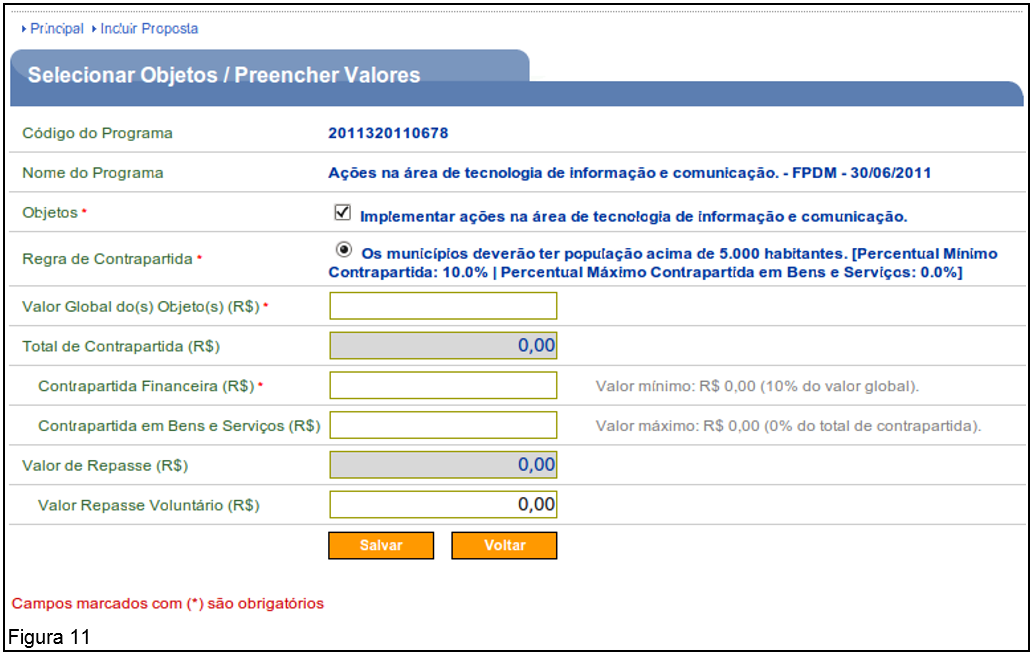
The system will display a screen to fill in the fields with the proposal values for each Program.
Below are the guidelines for each field:
- Objects: the “object of the Program” which will be executed by Proponent.
- Rule of Counterpart: the “rule of Counterpart", if there is.
- Global value of(s) Object(s) (R$): the global value of the Object of Health insurance.
- Total of Counterpart (R$): sum of Counterpart financial + Counterpart in goods and services.
- Counterpart Financial (R$): the value of the Counterpart financial, observing the percentages defined for the Program.
- Counterpart Goods and Services (R$): the value of the Counterpart of goods and services, observing the percentages defined for the Program.
- Transfer Value: The system automatically calculates this value.
- Voluntary Transfer Amount (R$): the amount of the body's voluntary transfer must be informed Grantor.
After filling in the fields, the user must click on the button "To save", as shown in Figure 11.
After the user clicks on the “To save”, the system will make available the global value of the Object(s) of Program(s) selected.
If you have more than one Program selected, the user must repeat the previous step for all programs.
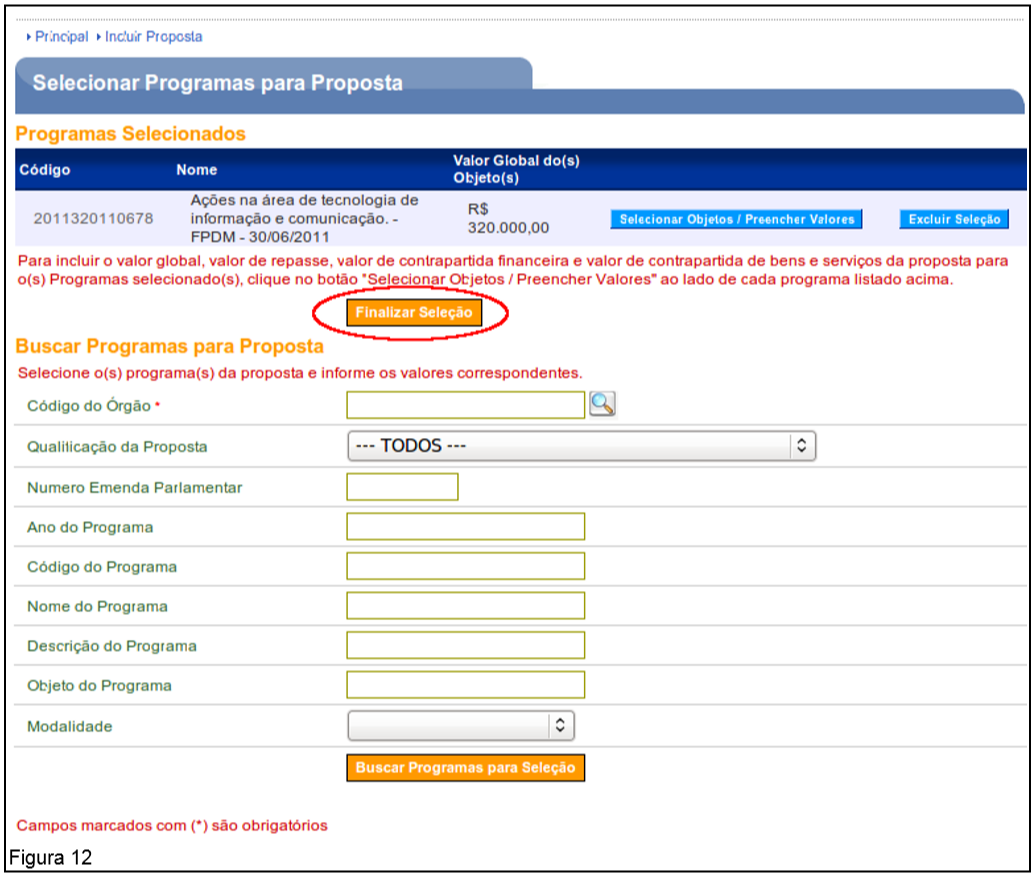
After filling in the value(s) of the Program(s), the user must click on the button “Finalize Selection”, as shown in Figure 12.
Upon completion of the selection, the system will make the remaining fields available for registering proposal data.
Below are the guidelines for the fields:
- Proponent: displays the CNPJ and company name of the Proponent who is registering the proposal.
- Body: displays the code and name of the body Grantor.
- Programs: displays the code, name of the Program and the overall value of the proposal. The “Change Programs” button allows you to change the proposal values, delete a Program selected and include other programs.
- Modality: displays the instrument modality informed in the Program.
- Justification: the justification for the proposal for carrying out the project must be informed. Object. Describe the objectives and benefits to be achieved with the execution of the Object of Health insurance/Transfer Agreement.
- Object of Health insurance: the objective of the Health insurance. Describe the Object what the purpose of the Health insurance/Transfer Agreement in a clear and summarized way.
- Technical and Managerial Capacity: the technical and managerial capacity of the Proponent in managing and executing the Object of Health insurance.
- Technical Capacity Annex: a document proving the technical capacity of the Proponent.
- Bank: one of the official banks must be selected where the funds will be deposited and managed. Health insurance.
- Agency: the agency where the funds will be deposited and managed must be informed. Health insurance.
- Effective Start Date: the effective date of the execution of the project must be informed. Object of Health insurance.
- Effective End Date: the effective end date of the execution of the project must be informed. Object of Health insurance.
- Attachments proving the Counterpart: the attachment(s) of the declaration/proof of Counterpart referring to the values informed in the proposal;
- The fields Global Value (R$), Transfer Value (R$), Value of Counterpart (R$), Value of Counterpart Financial (R$) and Value of Counterpart of Goods and Services (R$), were previously completed.
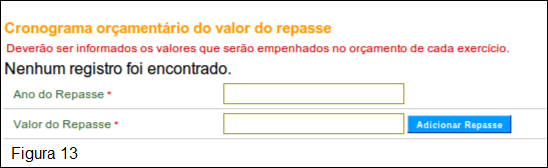
- In the “Budget schedule for the transfer amount” section, the following fields must be filled in:
- Year of Transfer: the year of transfer must be informed.
- Transfer Value: the transfer value must be informed.
After entering all the fields in the “Budget schedule for the transfer amount”, the user must click on the “Add Transfer”, as shown in Figure 13.
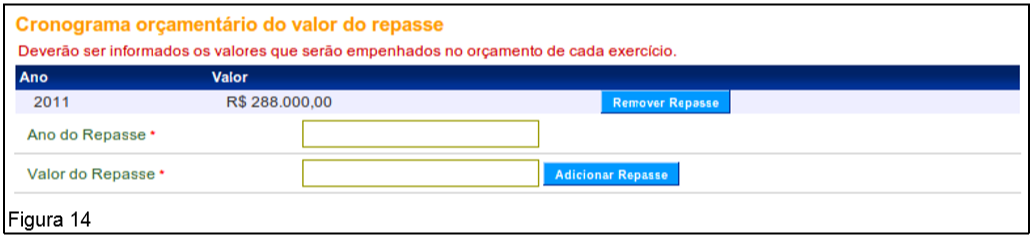
The system will display a new screen with the schedule fields filled in and in the “Budget schedule for the transfer amount”, the user can delete the data entered, using the button “Remove Refund”, as shown in Figure 14.
If there is a transfer in future years, the year and the amount of the transfer in the respective year must be entered and again click on the button “Add Transfer”.
To register the proposal, after entering all the fields, the user must click on the “Register Proposal”, as shown in Figure 15.
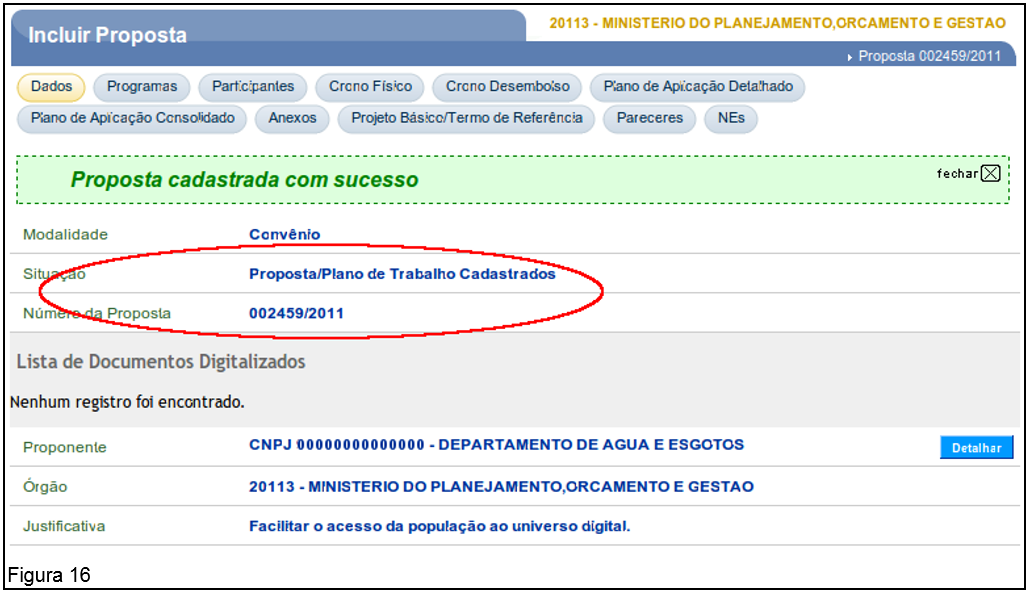
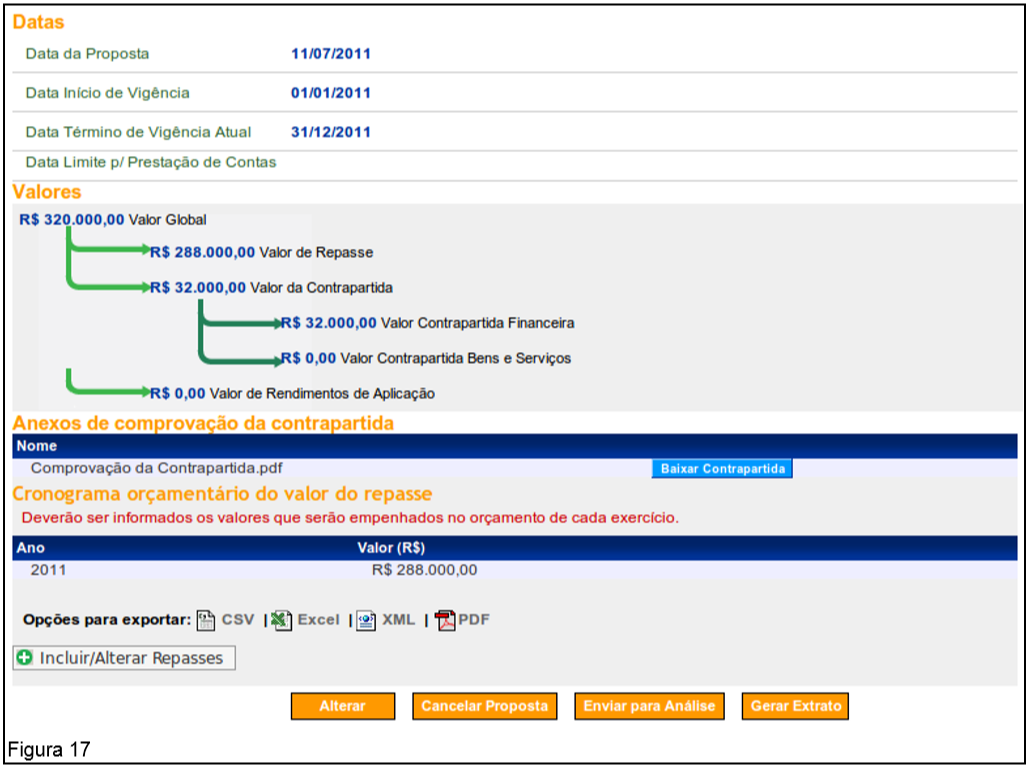
After clicking “Register Proposal”, the system will display Message “Proposal registered successfully” and informing that the status of the proposal is “Proposal/Work plan Registered” and the number generated for the proposal, as shown in Figure 16.
It also displays buttons for “To alter”, “Cancel Proposal”,
“Submit for Analysis”, (if the user profile is Manager in Health insurance of Proponent) It is "To generate Extract”, as shown in Figure 17.
See below the guidelines for each tab:
- Data: presents the data registered for the proposal and the “Detail” button where the registration data of the proposal is displayed. Proponent and registered members.
- Programs: presents the programs related to the proposal, which can be deleted, edited and detailed.
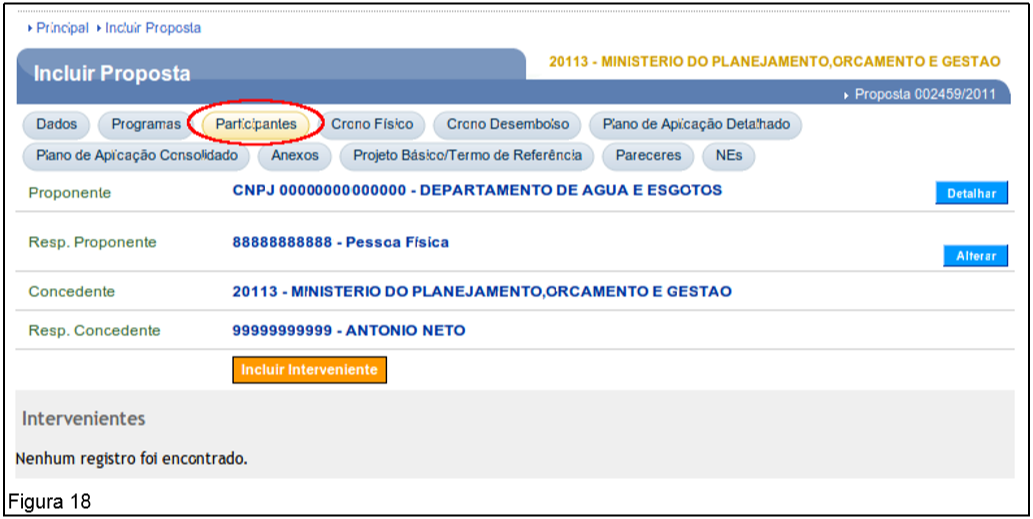
- Participants: displays information about the instrument’s participants and it is possible to include the figure of the Intervenor, if there is.
- Physical Schedule: used to include the goals and stages of the Health insurance.
- Disbursement Schedule: used to include the value(s) of the installment(s) to be released by the Grantor and by Convenient, if there is Counterpart.
- Detailed Application Plan: used to register the goods and services to be acquired or produced (those that, by their nature, increase assets). The nature of the expense and the sub-item of each item must be informed.
- Consolidated Application Plan: presents a summary of the information included in the Detailed Application Plan.
- Attachments: used to attach relevant files when necessary. Files containing, for example, plans of the work, photos of the land where the work will be carried out, reports and technical opinions, etc., can be included. These files must contain a maximum of 1 MB (1024 kbytes), and several files with different names may be included.
- Project Basic / Term of Reference: presents documents/attachments about works data (Project Basic), contracting services and purchasing material (Term of Reference).
- Opinions: presents information about the opinions of the technical, legal, Manager financial and Manager in Health insurance of Grantor.
- NEs: presents information about the commitment note(s) generated in the system.
Important: O Work plan may be changed after publication of the Health insurance If there is a need to change the Project basic or term of reference. In this case, changes must be made to the physical and disbursement schedules.
4.2.3. Include Participants – Intervenor
The figure of Intervenor it means to be a organ or direct or indirect public administration entity from any sphere of government, or private entity that participates in the Health insurance for express consent or assume obligations in your own name.
The inclusion of Intervenor can be done either by the user Convenient as for the user Grantor, as per the following subitems.
4.2.3.1. Add Participants – Profile Convenient
To add a new participant, the user with the profile Convenient may include a Intervenor in Legal person where the type is CNPJ or Generic Registration. To do this, you must click on the “Participants”, as shown in Figure 18.
The system provides the button “Detail”, to view the data from the Proponent, The button "To alter”, to change the Responsible Proponent and the button “Include Intervenor” if necessary the inclusion(s) of Intervenor(s).
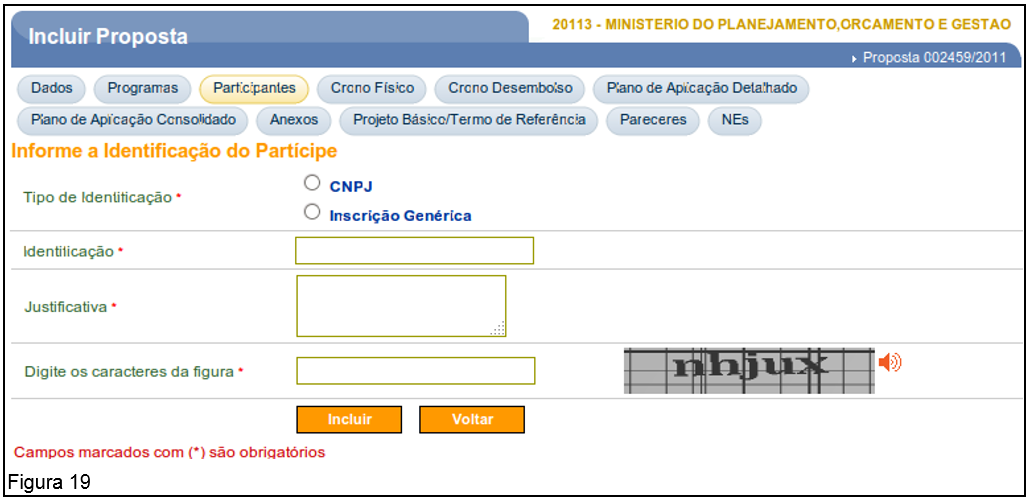
To include a Intervenor, the user Convenient you must click on the “Include Intervenor” and the system will display a screen to fill in the following fields:
- Type of Identification: you must inform whether the Intervenor has CNPJ or Generic Registration (International Organizations).
- Identification: you must inform the CNPJ or Generic Registration, as selected in the “Type of Identification” field.