Step by Step: How to register your Work Plan on the Mais Brasil Platform – PG 06!
Continued Page 6

To continue the example and include the remaining items, the user must fill in the fields as instructed previously.

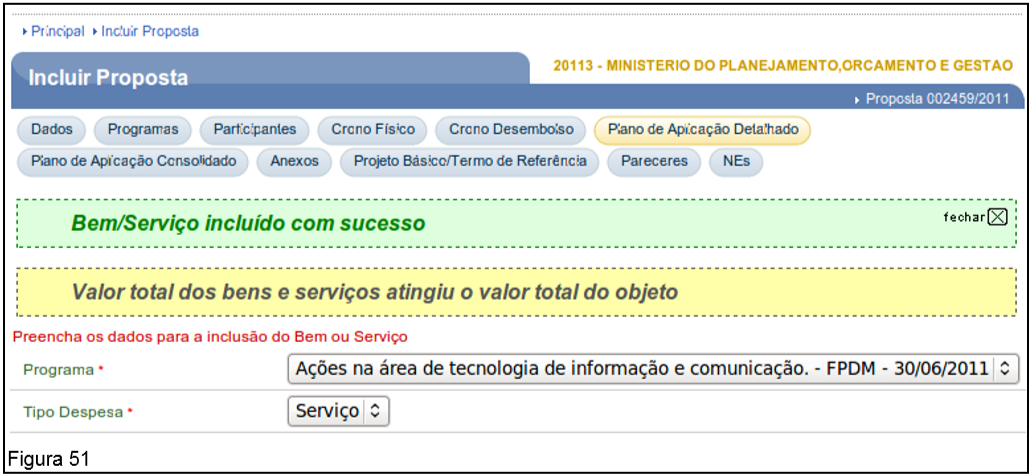
After completing the last and all items, the system will display the messages: ”Good/Service successfully added” and when the sum of the value of the items reaches the global value of the Health insurance, the system will also display the Message: “Total value of goods and services reached the total value of Object”, as shown in Figure 51.
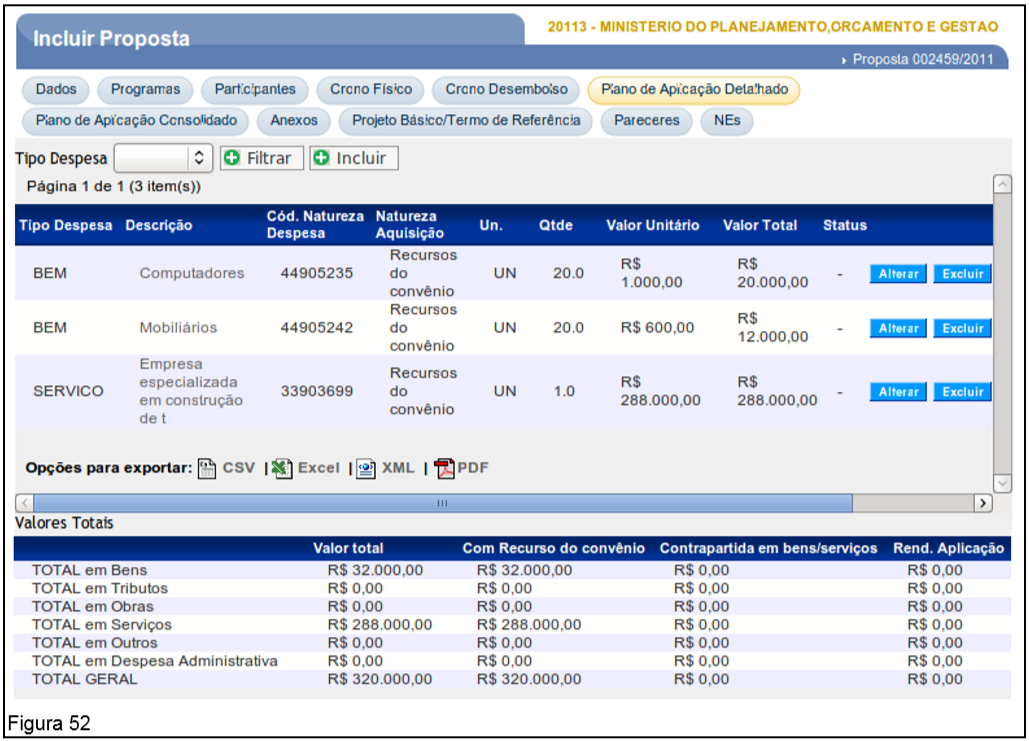
In the section of Total Values, the system counts and updates the values reported for each included item and note that the included items may be changed or excluded, as shown in Figure 52.
If Health insurance make use of the Application Income, the system will update in the “Yield Application” the resource values used.

Important: For programs included and made available by the agency Grantor with the list of items, the Proponent, when including the Proposal, in the Detailed Application Plan tab, you can only include the items listed in the list of items.

To consult the List of Items, the user must access the Agreements Portal with login and password or Digital Certificate, click on the menu “Programs/Consult Programs", in the field "Code of Program” enter the code of the Program and click on consult, click on the “List of Items – Type of Expense”, download the spreadsheet and check the items.

Observation: If the item is not included in the list of items, the user can check with the Grantor whether it is possible to change the list of items in the Program.

4.2.7. View Consolidated Application Plan

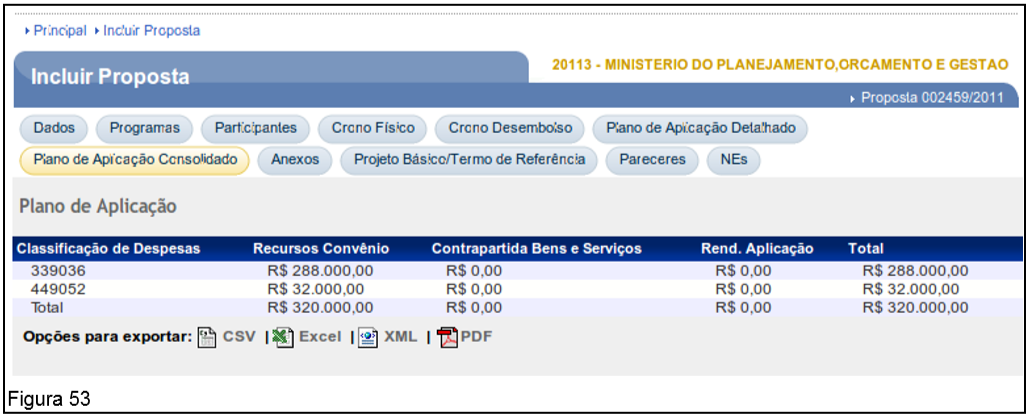
Once the list of expense type item(s) is provided, the system will provide the Consolidated Application Plan of the resources to be disbursed by the Grantor It is Convenient in the form of Counterpart, if applicable.

The Consolidated Application Plan presents, for each item included, the “Expense Classification”, “Resources Health insurance”, “Counterpart Goods and services”, “Application Yield" and the "Total”.

To view the Consolidated Application Plan, the user must click on the “Consolidated Application Plan”, as shown in Figure 53.
If Health insurance make use of the Application Income, the system will update in the “Yield Application” the resource values used.

4.2.8. Include Attachments

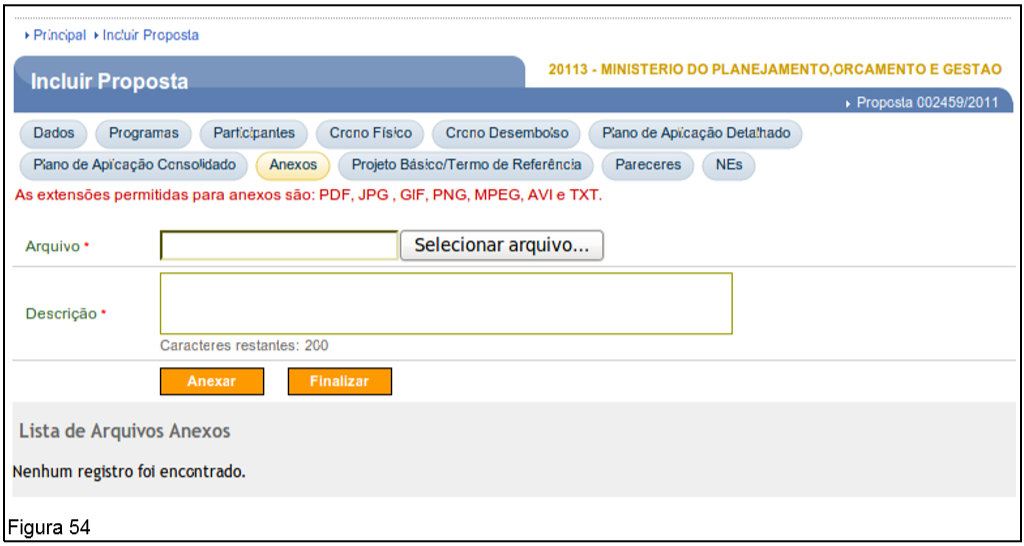
To include attached files, the user must access the “Attachments”. Files containing, for example, plans of the work, photo of the land where the work will be carried out, reports, technical opinions, etc., up to 1MB (1024 kbytes) can be included.

The fields must be filled in according to the following guidelines:
After filling in the fields, the user must click on “Attach”, as shown in Figure 54.
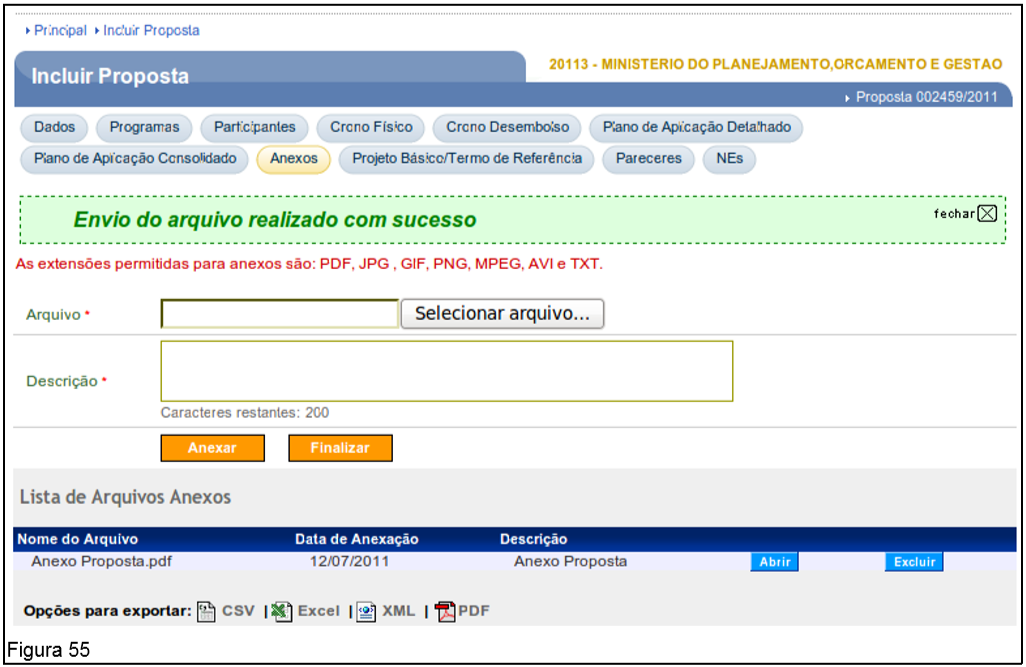
By clicking on the “Attach”, the system will display MessageFile sent successfully”.

A proposal can have more than one attachment. Included attachments are displayed at the bottom of the screen. For each attachment, the system provides “Open" It is "Delete”, which allow viewing or deletion, if necessary, as shown in Figure 55.
Important: The allowed extensions are: pdf, jpg, gif, png, mpeg, avi and txt.

4.2.9. Include Project Basic/Terms of Reference

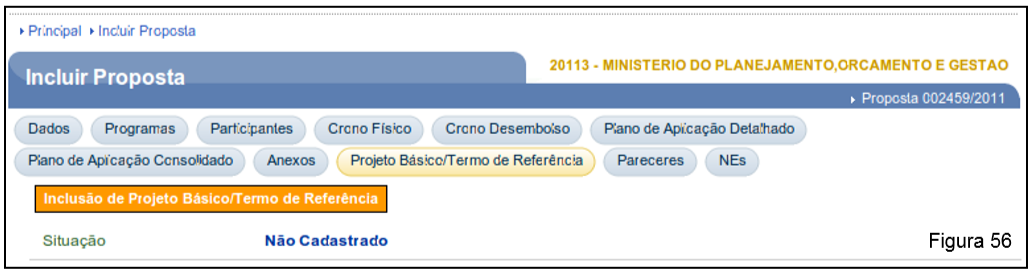
For inclusion of Project Basic/Terms of Reference, the user must access the “Project Basic/Terms of Reference”. Documents containing, for example, work data (Project Basic), contracting services and purchasing material (Term of Reference). To do this, the user must click on “Inclusion of Project Basic/Terms of Reference”, as shown in Figure 56.
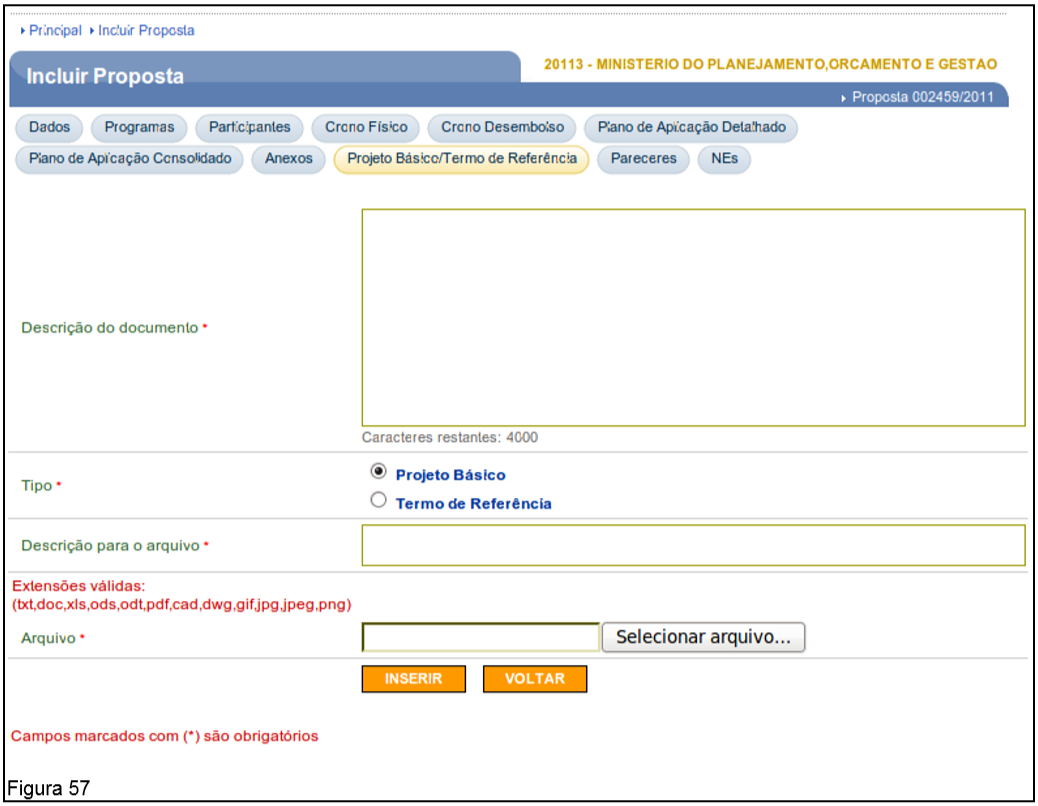
After the user clicks on the “Inclusion of Project Basic/Terms of Reference”, the system will display a screen with the fields to be filled in according to the following instructions:
After filling in the fields, the user must click on the “Insert”, as shown in Figure 57.
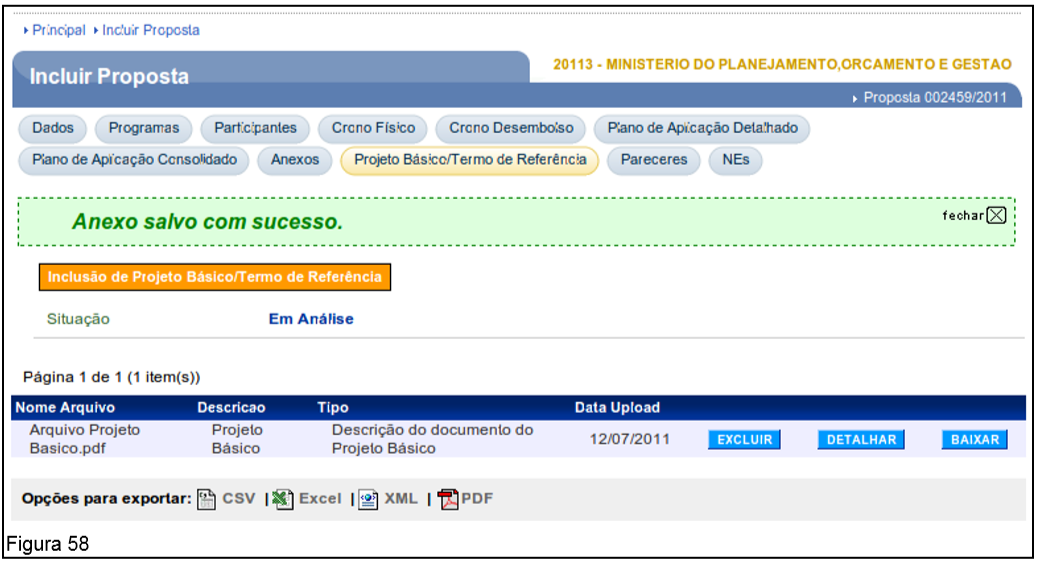
By clicking on the “Insert”, the system will display the MessageAttachment saved successfully”.

A proposal can have more than one project file. Project basic/term of reference. Included files are displayed at the bottom of the screen. For each file, the system provides the “Delete”, “Detail" It is "To go down”, which allow for deletion, detailing or downloading, if necessary, as shown in Figure 58.
Important: The extensions allowed for attachments are: txt, doc, xls, ods, odt, pdf, cad, dwg, gif, jpg, jpeg and png.

4.2.10. Include Declarations

The “Declarations” aims to comply with the legal provisions of the changes to Interministerial Ordinance No. 507/2011. This involves better control in the management of declarations made by the Convenient in celebrating a Health insurance. This option will only be available for clients of the following type: State Public Administration or Federal District It is Public administration Municipal. The user must have a “Proposal Registration”.
Important:
There are two groups of statements that can be included by the Convenient: the first related to Art. 38 and the second related to Art. 39.

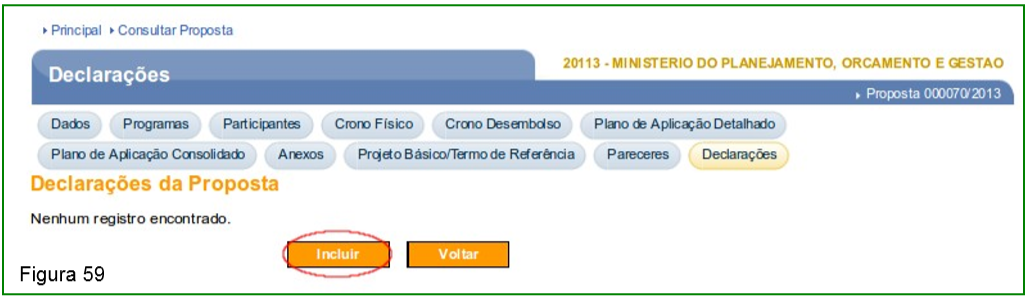
To include statements, the user must access the “Declarations” and click on the “Include”, as shown in Figure 59.
The system will display a screen with the “Type of Declaration” field so that the user can select a type of declaration according to the groups below:
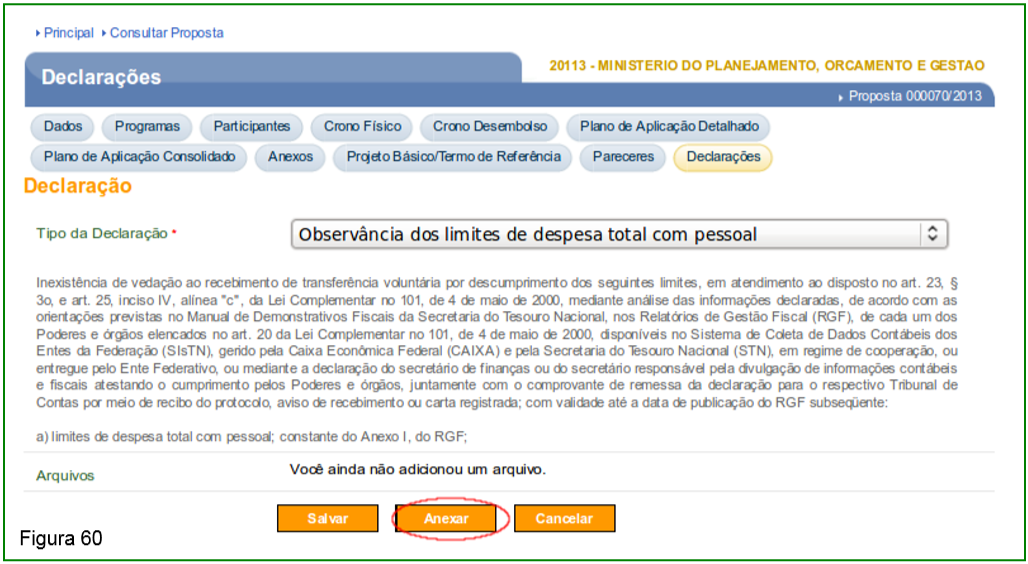
When selecting the type of declaration, the explanatory text related to it will be displayed on the screen and the user can click on the “Attach” button to include the files, as shown in Figure 60.