
© 2012. Todos os direitos reservados ao Ingestion. CNPJ: 18.171.211/0001-52 | Email: contato@ingesto.org.br | WhatsApp: (31) 9 9149-8819
Step by Step: How to register your Work Plan on the Mais Brasil Platform – PG 02!
Continued Page 2
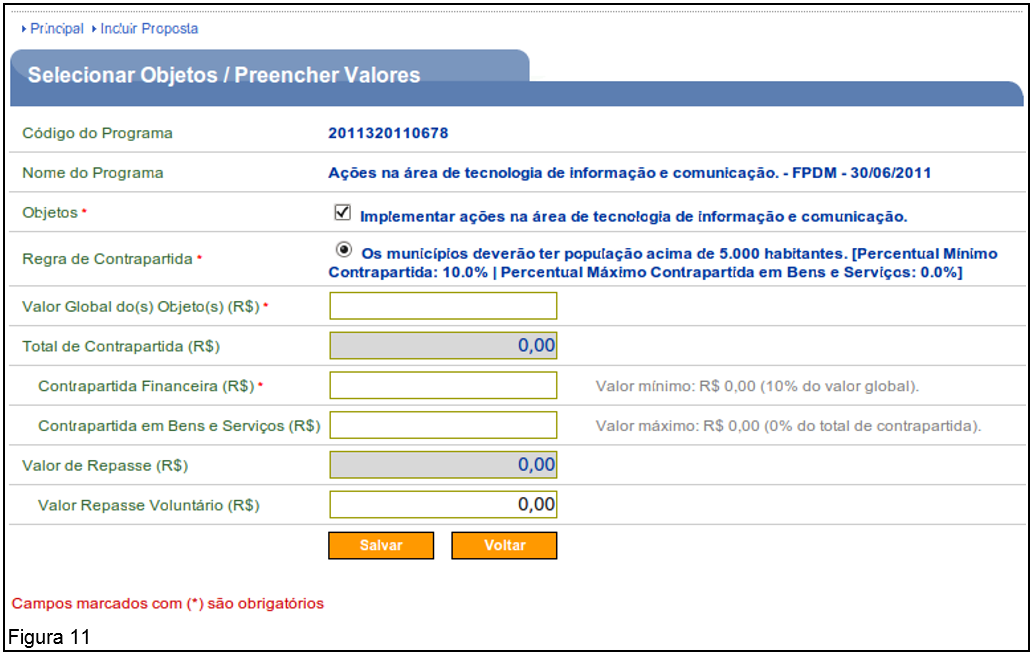
O sistema exibirá tela para o preenchimento dos campos com os valores da proposta de cada programa.
Below are the guidelines for each field:
- Objetos: deve ser selecionado o “objeto do programa” que será executado pelo proponente.
- Regra de Contrapartida: deve ser selecionada a “regra de contrapartida”, se houver.
- Valor Global do(s) Objeto(s) (R$): deve ser informado o valor global do objeto do convênio.
- Total de Contrapartida (R$): soma da contrapartida financeira + contrapartida em bens e serviços.
- Contrapartida Financeira (R$): deve ser informado o valor da contrapartida financeira, observando-se os percentuais definidos para o programa.
- Contrapartida Bens e Serviços (R$): deve ser informado o valor da contrapartida de bens e serviços, observando-se os percentuais definidos para o programa.
- Transfer Value: The system automatically calculates this value.
- Valor Repasse Voluntário (R$):deve ser informado o valor do repasse voluntário do órgão concedente.
After filling in the fields, the user must click on the button "To save", as shown in Figure 11.
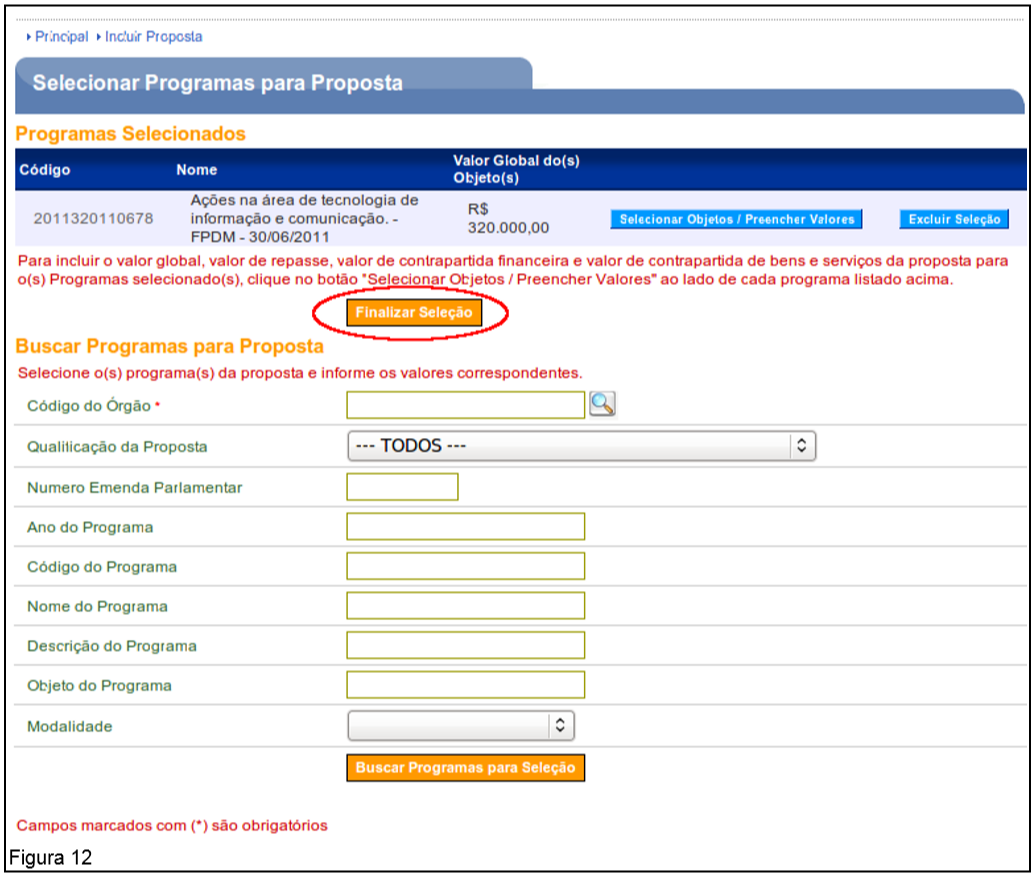
After the user clicks on the “To save”, o sistema disponibilizará o valor global do(s) objeto(s) do(s) programa(s) selecionado(s).
Caso tenha mais de um programa selecionado, o usuário deverá repetir o passo anterior para todos os programas.
Após o preenchimento do(s) valor(es) do(s) programa(s), o usuário deverá clicar no botão “Finalize Selection”, as shown in Figure 12.
Upon completion of the selection, the system will make the remaining fields available for registering proposal data.
Below are the guidelines for the fields:
- Proponente: exibe o CNPJ e a razão social do proponente que está cadastrando a proposta.
- Órgão: exibe o código e o nome do órgão concedente.
- Programas: exibe o código, o nome do programa e o valor global da proposta. O botão “Alterar Programas” possibilita a alteração dos valores da proposta, excluir um programa selecionado e incluir outros programas.
- Modalidade: exibe a modalidade do instrumento informada no programa.
- Justificativa: deve ser informada a justificativa da proposta para execução do objeto. Descrever os objetivos e benefícios a serem alcançados com a execução do objeto do convênio/contrato de repasse.
- Objeto do Convênio: deve ser informado o objetivo do convênio. Descrever o objeto a que se destina o convênio/contrato de repasse de forma clara e resumida.
- Capacidade Técnica e Gerencial: poderá ser informado a capacidade técnica e gerencial do proponente em fazer a gestão e execução do objeto do convênio.
- Anexo Capacidade Técnica: poderá ser anexado um documento que comprove a capacidade técnica do proponente.
- Banco: deve ser selecionado um dos bancos oficiais onde será depositado e gerido os recursos do convênio.
- Agência: deve ser informado a agência onde será depositado e gerido os recursos do convênio.
- Data Início Vigência: deve ser informada a data de início de vigência da execução do objeto do convênio.
- Data Término Vigência: deve ser informada a data de término de vigência da execução do objeto do convênio.
- Anexos de comprovação da contrapartida: poderá ser digitalizado o(s) anexo(s) da declaração/comprovação da contrapartida referente aos valores informados na proposta;
- Os campos Valor Global (R$), Valor de Repasse (R$), Valor da Contrapartida (R$), Valor da Contrapartida Financeira (R$) e Valor da Contrapartida de Bens e Serviços (R$), foram preenchidos anteriormente.
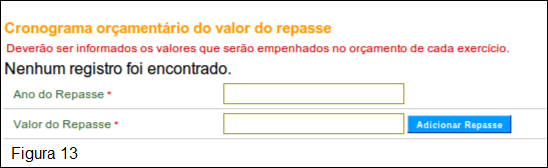
- In the “Budget schedule for the transfer amount” section, the following fields must be filled in:
- Year of Transfer: the year of transfer must be informed.
- Transfer Value: the transfer value must be informed.
After entering all the fields in the “Budget schedule for the transfer amount”, the user must click on the “Add Transfer”, as shown in Figure 13.
The system will display a new screen with the schedule fields filled in and in the “Budget schedule for the transfer amount”, the user can delete the data entered, using the button “Remove Refund”, as shown in Figure 14.
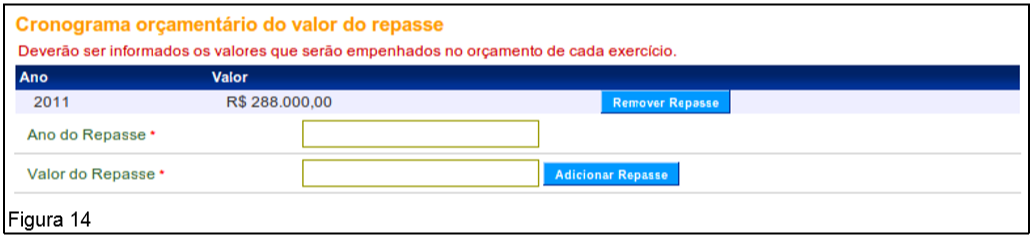
If there is a transfer in future years, the year and the amount of the transfer in the respective year must be entered and again click on the button “Add Transfer”.
To register the proposal, after entering all the fields, the user must click on the “Register Proposal”, as shown in Figure 15.

After clicking “Register Proposal”, o sistema exibirá mensagem “Proposal registered successfully” and informing that the status of the proposal is “Proposta/Plano de Trabalho Cadastrados” and the number generated for the proposal, as shown in Figure 16.
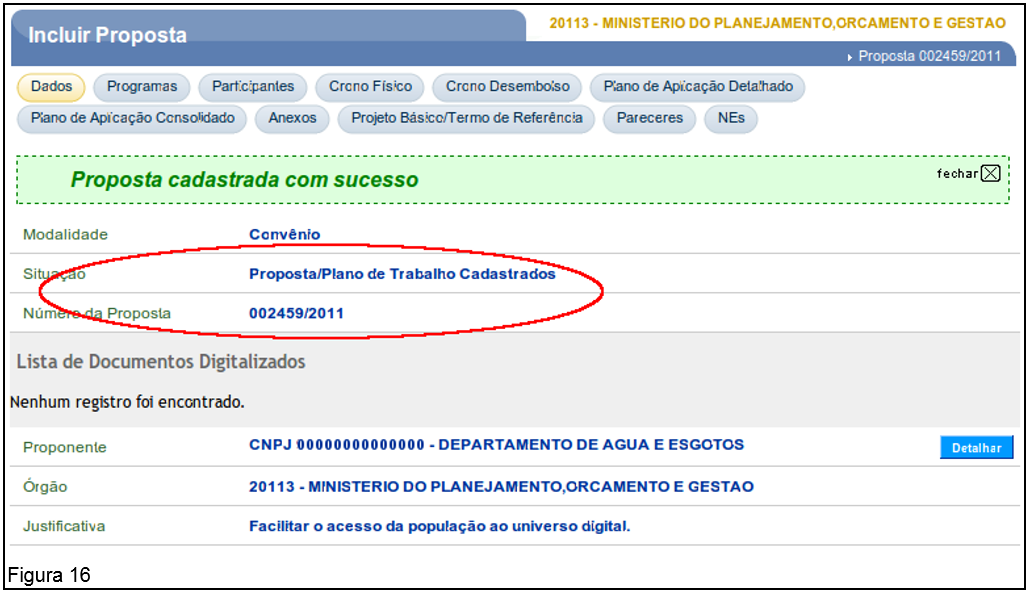
It also displays buttons for “To alter”, “Cancel Proposal”,
“Submit for Analysis”, (se o perfil do usuário for Gestor de Convênio do Proponente) e “To generate Extract”, as shown in Figure 17.
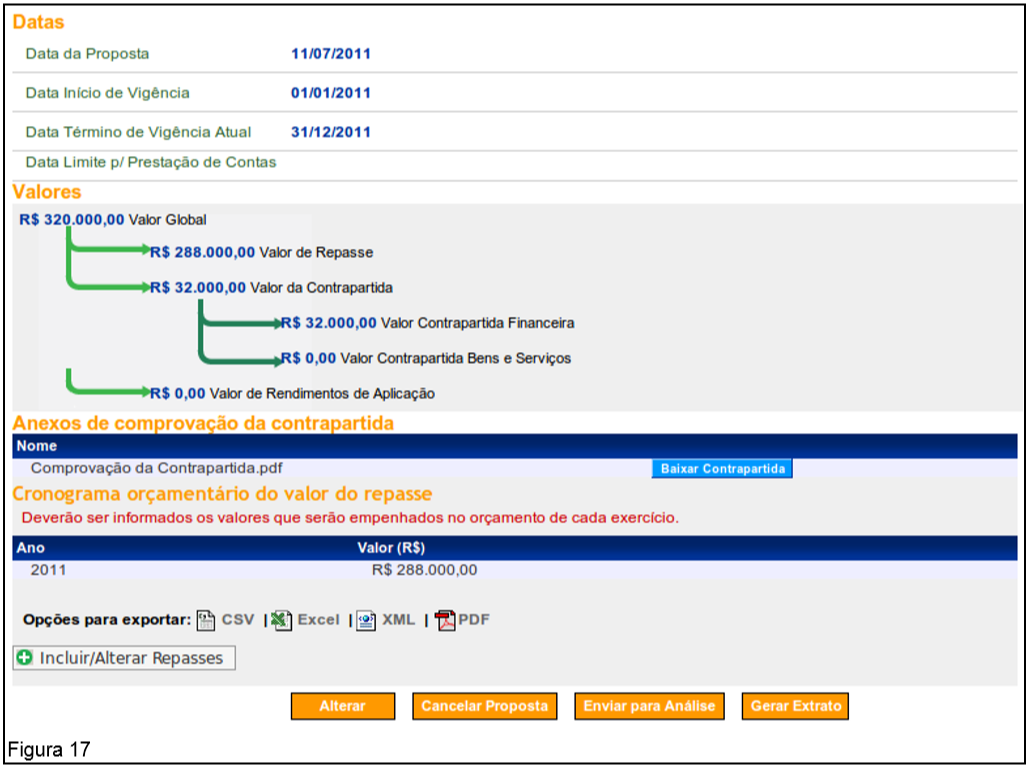
See below the guidelines for each tab:
- Dados: apresenta os dados cadastrados para a proposta e o botão “Detalhar” onde são exibidos os dados do cadastro do proponente e os membros cadastrados.
- Programs: presents the programs related to the proposal, which can be deleted, edited and detailed.
- Participantes: exibe informação sobre os participantes do instrumento e é possível incluir a figura do interveniente, se houver.
- Cronograma Físico: utilizada para inclusão das metas e etapas do convênio.
- Cronograma Desembolso: utilizada para inclusão do(s) valor(es) da(s) parcela(s) a ser(em) liberada(s) pelo concedente e pelo convenente, caso haja contrapartida.
- Detailed Application Plan: used to register the goods and services to be acquired or produced (those that, by their nature, increase assets). The nature of the expense and the sub-item of each item must be informed.
- Consolidated Application Plan: presents a summary of the information included in the Detailed Application Plan.
- Attachments: used to attach relevant files when necessary. Files containing, for example, plans of the work, photos of the land where the work will be carried out, reports and technical opinions, etc., can be included. These files must contain a maximum of 1 MB (1024 kbytes), and several files with different names may be included.
- Projeto Básico / Termo de Referência: apresenta documentos/anexos sobre os dados de obras (Projeto Básico), contratação de serviços e aquisição de material (Termo de Referência).
- Pareceres: apresenta informações sobre os pareceres do analista técnico, jurídico, gestor financeiro e gestor de convênio do concedente.
- NEs: presents information about the commitment note(s) generated in the system.
Important: O plano de trabalho poderá ser alterado após a publicação do convênio se existir a necessidade de alteração do projeto básico ou do termo de referência. Neste caso, deverão ser realizadas alterações nos cronogramas físicos e de desembolso.
4.2.3. Incluir Participantes – Interveniente
The figure of Intervenor it means to be a organ or direct or indirect public administration entity de qualquer esfera de governo, ou entidade privada que participa do convênio para express consent or assume obligations in your own name.
A inclusão de Interveniente poderá ser efetuado tanto pelo usuário Convenient as for the user Grantor, as per the following subitems.
4.2.3.1. Incluir Participantes – Perfil Convenente
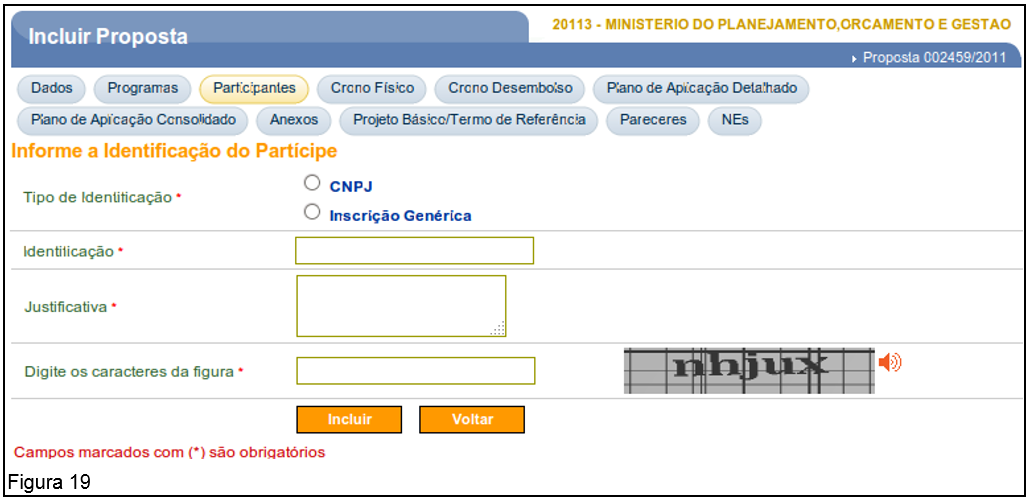
To add a new participant, the user with the profile Convenient may include a Intervenor in Legal person where the type is CNPJ or Generic Registration. To do this, you must click on the “Participants”, as shown in Figure 18.
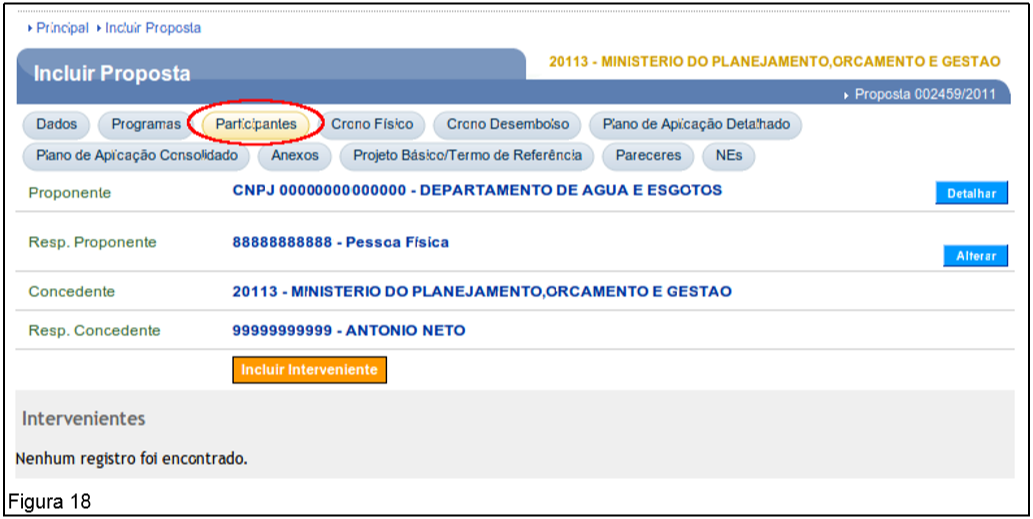
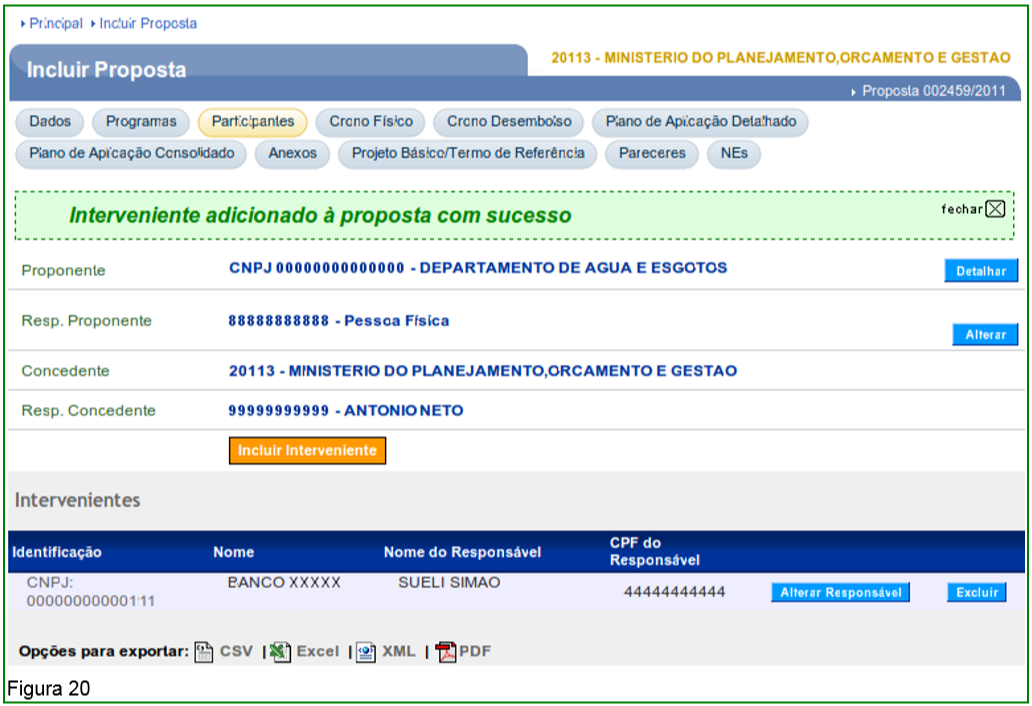
The system provides the button “Detail”, para visualizar os dados do Proponente, o botão “To alter”, para alterar o Responsável Proponente e o botão “Incluir Interveniente” caso seja necessário a inclusão(ões) de interveniente(s).
Para incluir um Interveniente, o usuário Convenient you must click on the “Incluir Interveniente” and the system will display a screen to fill in the following fields:
- Tipo de Identificação: deverá informar se o interveniente possui CNPJ ou Inscrição Genérica (Organismos Internacionais).
- Identification: you must inform the CNPJ or Generic Registration, as selected in the “Type of Identification” field.
Important: o Interveniente que será incluído, obrigatoriamente, deverá estar cadastrado no Portal dos Convênios.
After filling in the fields according to the participant's identification, the user Convenient You must type the characters in the figure and click on the “Include”, as shown in Figure 19.
O sistema exibirá mensagem: “Interveniente adicionado à proposta com sucesso”.
Observe que o interveniente já está cadastrado no Portal dos Convênios e, portanto o sistema busca todos os dados do CNPJ informado.
Uma proposta pode ter mais de um Interveniente incluído e os mesmos são exibidos na parte inferior da tela.
Para cada interveniente, o sistema disponibiliza o botão “Delete”, which allows its deletion, if necessary, and the “Change Responsible” caso seja necessário alterar o responsável do interveniente, conforme Figura 20.