
© 2012. Todos os direitos reservados ao Ingestion. CNPJ: 18.171.211/0001-52 | Email: contato@ingesto.org.br | WhatsApp: (31) 9 9149-8819
Step by Step: How to register your Work Plan on the Mais Brasil Platform – PG 06!
Continued Page 6
To continue the example and include the remaining items, the user must fill in the fields as instructed previously.
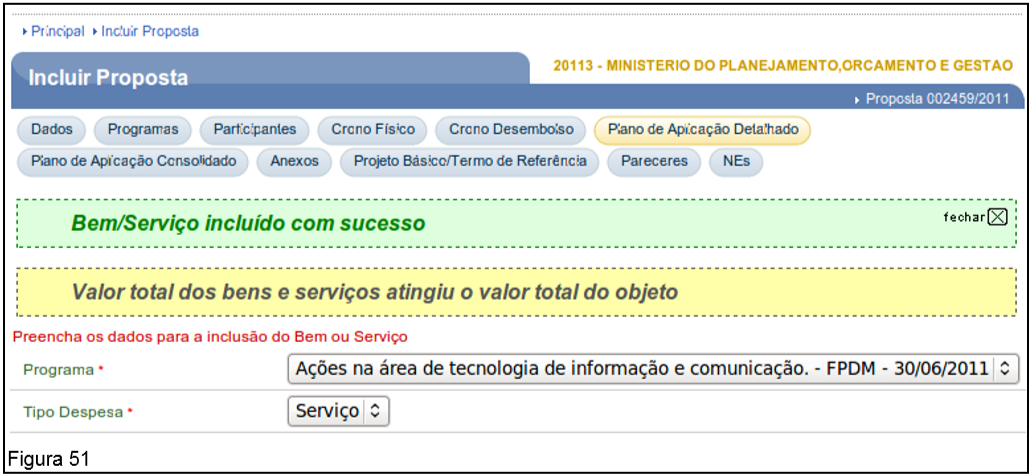
After completing the last and all items, the system will display the messages: ”Good/Service successfully added” e quando a soma do valor dos itens atingir o valor global do convênio, o sistema exibirá também a mensagem: “Valor total dos bens e serviços atingiu o valor total do objeto”, as shown in Figure 51.
In the section of Total Values, the system counts and updates the values reported for each included item and note that the included items may be changed or excluded, as shown in Figure 52.
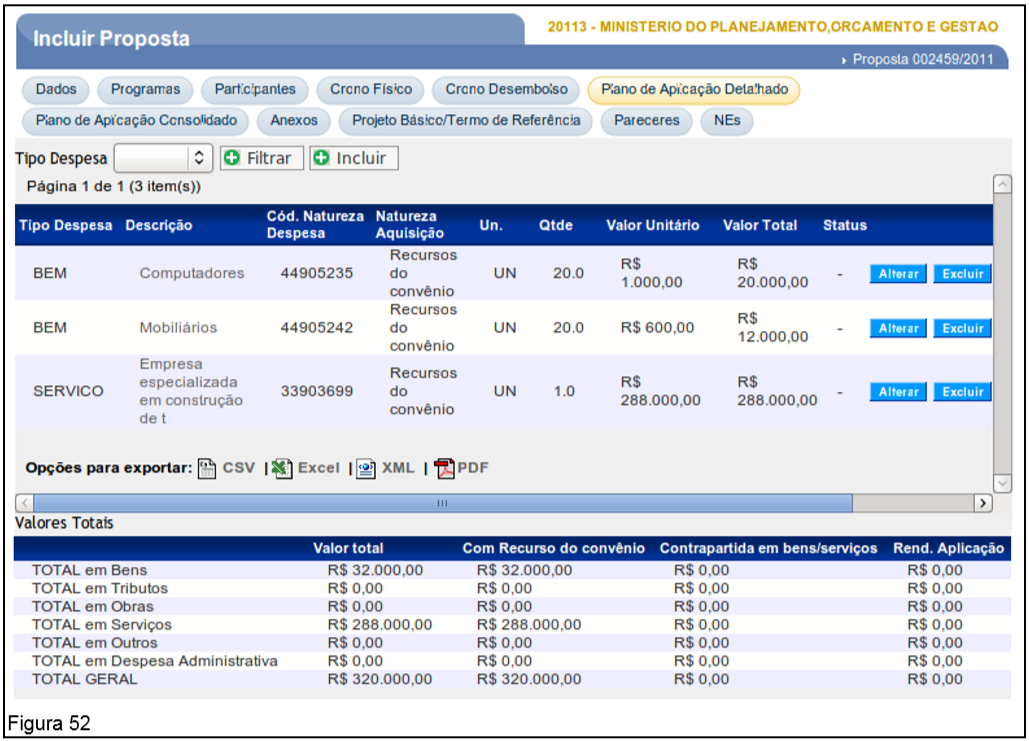
Caso o Convênio faça uso do Rendimento de Aplicação, o sistema atualizará na coluna “Yield Application” the resource values used.
Important: For programs included and made available by the agency Grantor com a lista de itens, o Proponente, ao incluir a Proposta, na aba Plano de Aplicação Detalhado, só poderá incluir os itens que constam relacionados na lista de itens.
To consult the List of Items, the user must access the Agreements Portal with login and password or Digital Certificate, click on the menu “Programs/Consult Programs", in the field "Código do Programa” informar o código do programa e clicar em consultar, clicar na aba “List of Items – Type of Expense”, download the spreadsheet and check the items.
Observation: Caso o item não conste na lista de itens, o usuário poderá verificar com o Concedente se é possível alterar a lista de itens no programa.
4.2.7. View Consolidated Application Plan
Once the list of expense type item(s) is provided, the system will provide the Consolidated Application Plan dos recursos a serem desembolsados pelo Concedente e Convenente em forma de contrapartida, se for o caso.
The Consolidated Application Plan presents, for each item included, the “Expense Classification”, “Recursos Convênio”, “Contrapartida Bens e Serviços”, “Application Yield" and the "Total”.
To view the Consolidated Application Plan, the user must click on the “Consolidated Application Plan”, as shown in Figure 53.
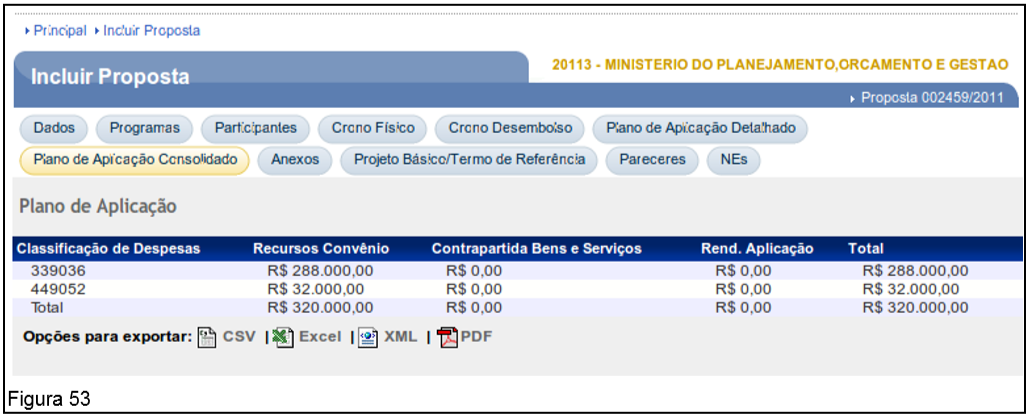
Caso o Convênio faça uso do Rendimento de Aplicação, o sistema atualizará na coluna “Yield Application” the resource values used.
4.2.8. Include Attachments
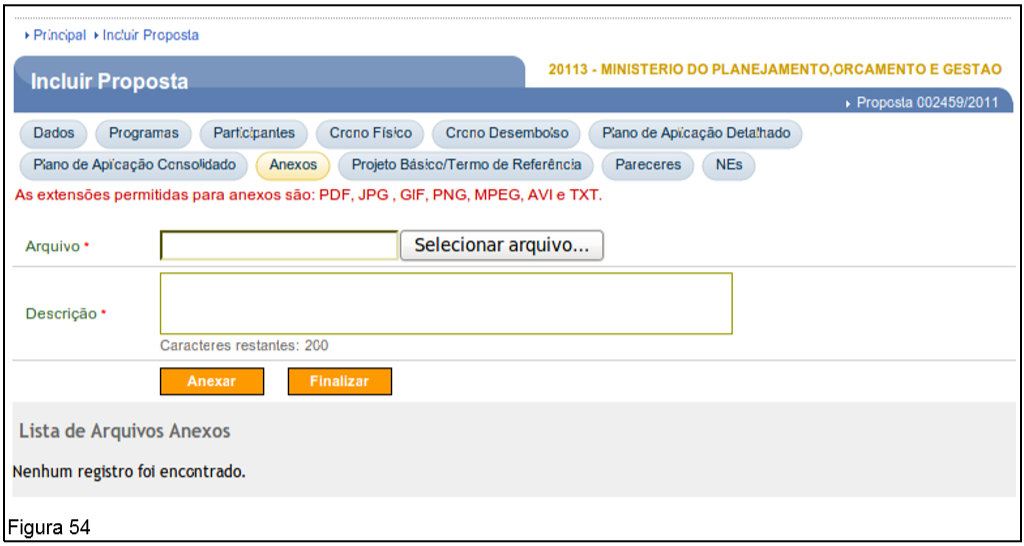
To include attached files, the user must access the “Attachments”. Files containing, for example, plans of the work, photo of the land where the work will be carried out, reports, technical opinions, etc., up to 1MB (1024 kbytes) can be included.
The fields must be filled in according to the following guidelines:
- File: the path of the file to be attached must be informed;
- Description: a description for the file must be provided.
After filling in the fields, the user must click on “Attach”, as shown in Figure 54.
By clicking on the “Attach”, o sistema exibirá mensagem “File sent successfully”.
A proposal can have more than one attachment. Included attachments are displayed at the bottom of the screen. For each attachment, the system provides “Open" It is "Delete”, which allow viewing or deletion, if necessary, as shown in Figure 55.
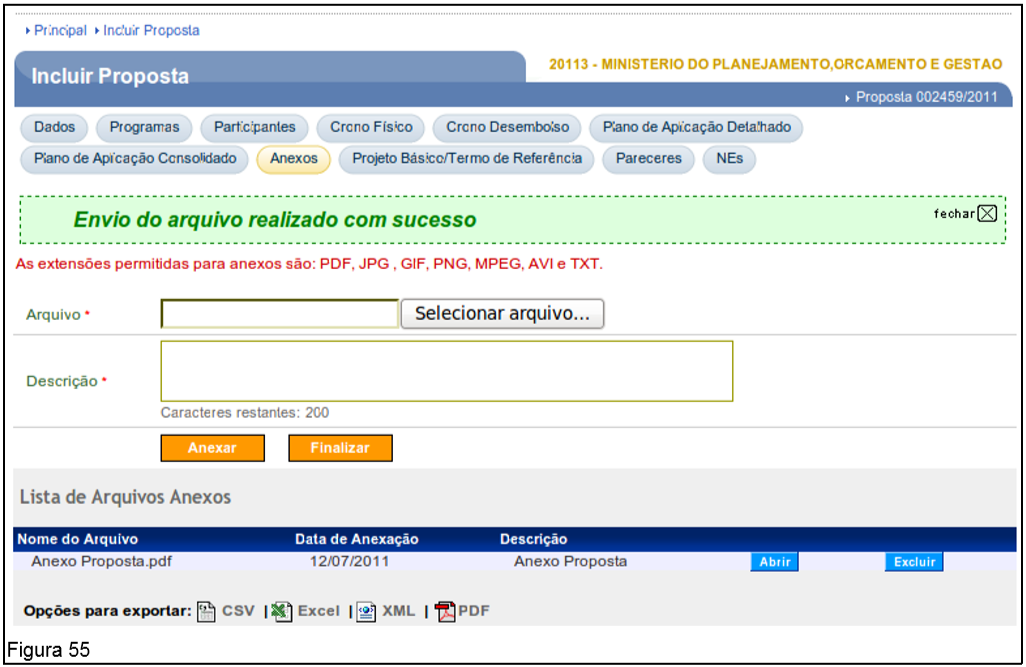
Important: The allowed extensions are: pdf, jpg, gif, png, mpeg, avi and txt.
4.2.9. Incluir Projeto Básico/Termo de Referência
Para inclusão de Projeto Básico/Termo de Referência, o usuário deverá acessar a aba “Projeto Básico/Termo de Referência”. Podem ser incluídos documentos contendo por exemplo, os dados da obra (Projeto Básico), a contratação de serviços e aquisição de material (Termo de Referência). Para isto, o usuário deverá clicar em “Inclusão de Projeto Básico/Termo de Referência”, as shown in Figure 56.
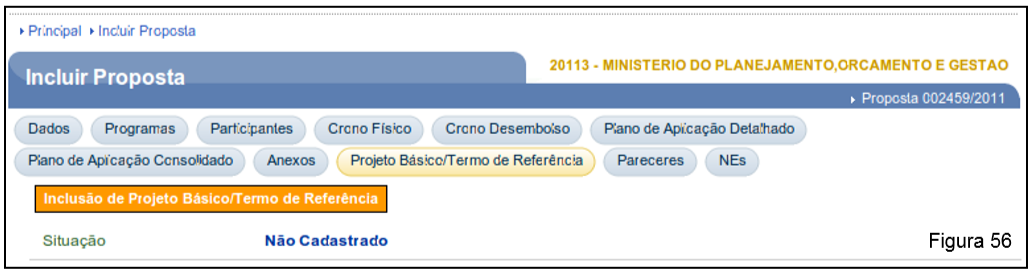
After the user clicks on the “Inclusão de Projeto Básico/Termo de Referência”, the system will display a screen with the fields to be filled in according to the following instructions:
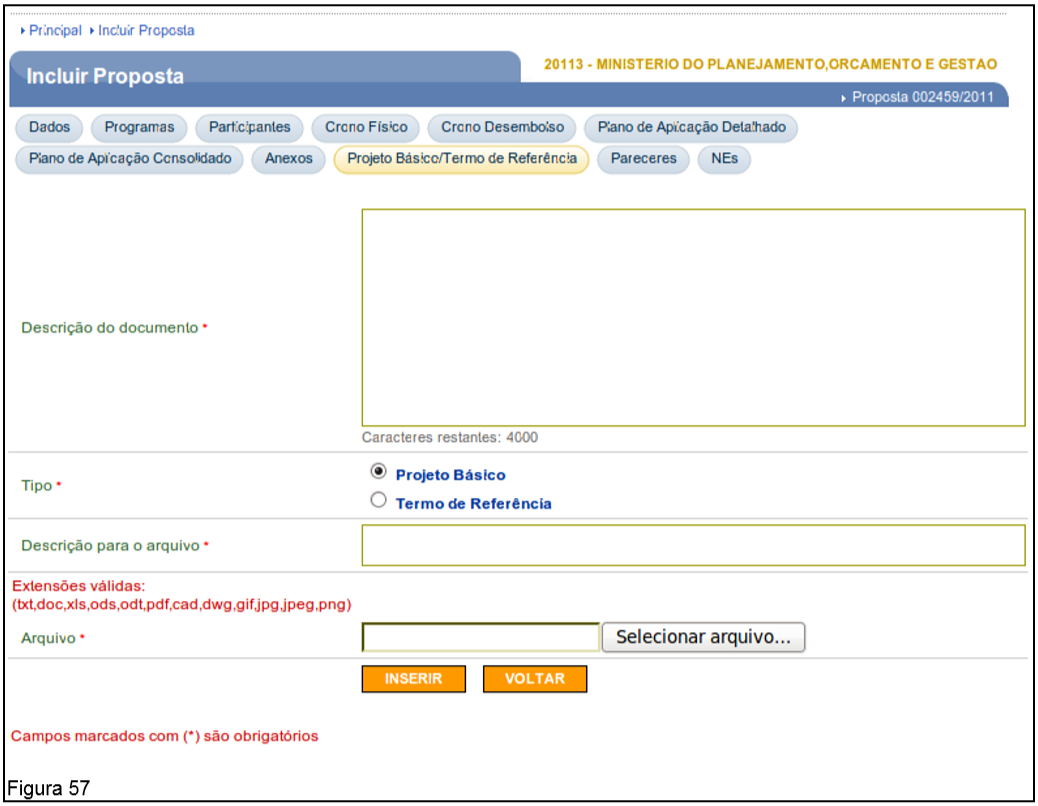
- Document description: a complete description of the document must be provided;
- Tipo: deve ser selecionado se é Projeto Básico ou Termo de Referência;
- Description for the file: a description must be provided for the file to be inserted;
- File: the path of the file to be inserted must be informed.
After filling in the fields, the user must click on the “Insert”, as shown in Figure 57.
By clicking on the “Insert”, o sistema exibirá a mensagem “Attachment saved successfully”.
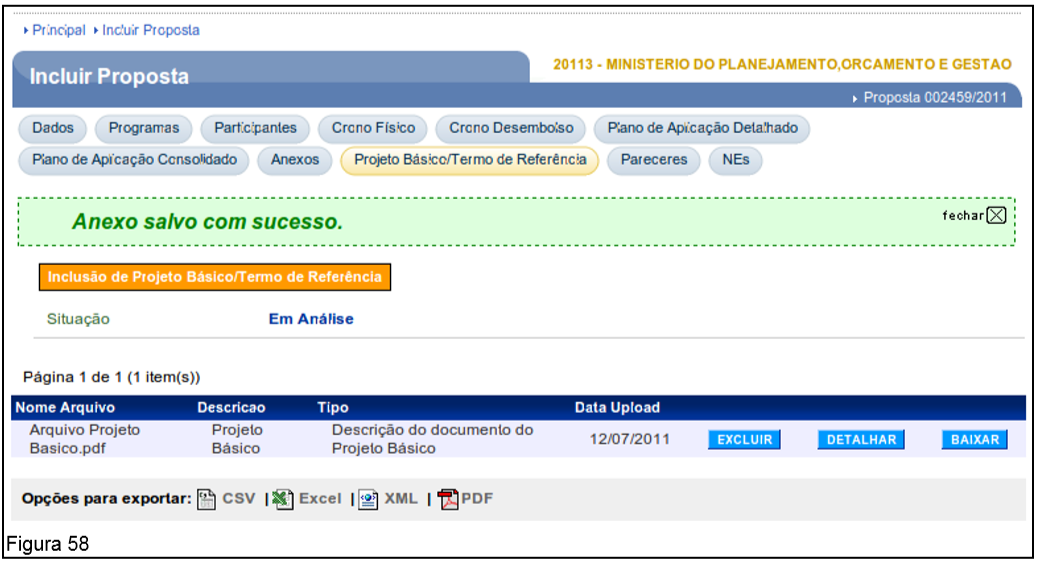
Uma proposta pode ter mais de um arquivo de projeto básico/termo de referência. Os arquivos incluídos são exibidos na parte inferior da tela. Para cada arquivo, o sistema disponibiliza os botões de “Delete”, “Detail" It is "To go down”, which allow for deletion, detailing or downloading, if necessary, as shown in Figure 58.
Important: The extensions allowed for attachments are: txt, doc, xls, ods, odt, pdf, cad, dwg, gif, jpg, jpeg and png.
4.2.10. Include Declarations
The “Declarations” visa o atendimento dos dispositivos legais das alterações da Portaria Interministerial n° 507/2011. Trata-se de um melhor controle na gestão das declarações que são realizadas pelo convenente na celebração de um convênio. Essa opção só estará disponível para convenentes do tipo: State Public Administration or Federal District It is Public administration Municipal. The user must have a “Proposal Registration”.
Important:
- As declarações podem ser alteradas até a celebração (assinatura) do convênio;
- Para cada declaração a ser incluída pelo Convenente tem-se a opção de fazer o upload de um ou mais arquivos;
- Each file of the same statement can be downloaded separately or all files compressed into a .zip;
- Nenhuma das declarações são obrigatórias devido ao fato do Concedente validar posteriormente a celebração.
São dois grupos de declarações que podem ser incluídas pelo convenente: o primeiro relacionado com o Art. 38 e o segundo relacionado com o Art. 39.
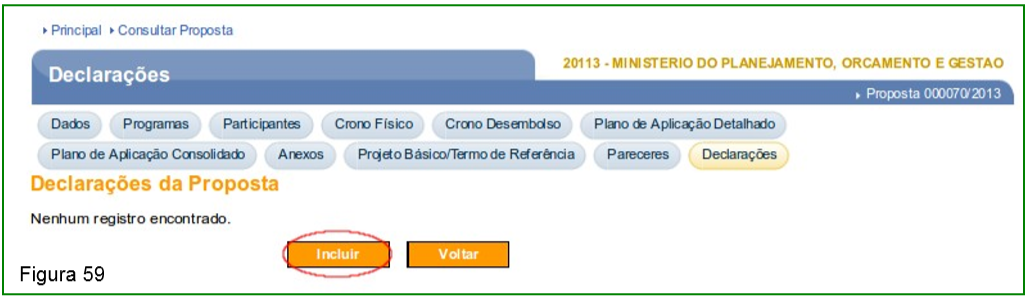
To include statements, the user must access the “Declarations” and click on the “Include”, as shown in Figure 59.
The system will display a screen with the “Type of Declaration” field so that the user can select a type of declaration according to the groups below:
- First group of statements (related to Art. 38):
- Compliance with total personnel expense limits:
- Inexistência de vedação ao recebimento de transferência voluntária por descumprimento dos seguintes limites, em atendimento ao disposto no art. 23, § 3o, e art. 25, inciso IV, alínea "c", da Lei Complementar no 101, de 4 de maio de 2000, mediante análise das informações declaradas, de acordo com as orientações previstas no Manual de Demonstrativos Fiscais da Secretaria do Tesouro Nacional, nos Relatórios de Gestão Fiscal (RGF), de cada um dos Poderes e órgãos elencados no art. 20 da Lei Complementar no 101, de 4 de maio de 2000, disponíveis no Sistema de Coleta de Dados Contábeis dos Entes da Federação (SIsTN), gerido pela Caixa Econômica Federal (CAIXA) e pela Secretaria do Tesouro Nacional (STN), em regime de cooperação, ou entregue pelo Ente Federativo, ou mediante a declaração do secretário de finanças ou do secretário responsável pela divulgação de informações contábeis e fiscais atestando o cumprimento pelos Poderes e órgãos, juntamente com o comprovante de remessa da declaração para o respectivo Tribunal de Contas por meio de recibo do protocolo, aviso de recebimento ou carta registrada; com validade até a data de publicação do RGF subseqüente: a) limites de despesa total com pessoal; constante do Anexo I, do RGF;
- Compliance with the limits of net consolidated debts:
- Inexistência de vedação ao recebimento de transferência voluntária por descumprimento dos seguintes limites, em atendimento ao disposto no art. 23, § 3o, e art. 25, inciso IV, alínea "c", da Lei Complementar no 101, de 4 de maio de 2000, mediante análise das informações declaradas, de acordo com as orientações previstas no Manual de Demonstrativos Fiscais da Secretaria do Tesouro Nacional, nos Relatórios de Gestão Fiscal (RGF), de cada um dos Poderes e órgãos elencados no art. 20 da Lei Complementar no 101, de 4 de maio de 2000, disponíveis no Sistema de Coleta de Dados Contábeis dos Entes da Federação (SIsTN), gerido pela Caixa Econômica Federal (CAIXA) e pela Secretaria do Tesouro Nacional (STN), em regime de cooperação, ou entregue pelo Ente Federativo, ou mediante a declaração do secretário de finanças ou do secretário responsável pela divulgação de informações contábeis e fiscais atestando o cumprimento pelos Poderes e órgãos, juntamente com o comprovante de remessa da declaração para o respectivo Tribunal de Contas por meio de recibo do protocolo, aviso de recebimento ou carta registrada; com validade até a data de publicação do RGF subsequente: b) limites das dívidas consolidada e mobiliária; constante do Anexo II, do RGF;
- Observância do limite de operação de crédito, inclusive por antecipação de receita:
- Inexistência de vedação ao recebimento de transferência voluntária por descumprimento dos seguintes limites, em atendimento ao disposto no art. 23, § 3o, e art. 25, inciso IV, alínea "c", da Lei Complementar no 101, de 4 de maio de 2000, mediante análise das informações declaradas, de acordo com as orientações previstas no Manual de Demonstrativos Fiscais da Secretaria do Tesouro Nacional, nos Relatórios de Gestão Fiscal (RGF), de cada um dos Poderes e órgãos elencados no art. 20 da Lei Complementar no 101, de 4 de maio de 2000, disponíveis no Sistema de Coleta de Dados Contábeis dos Entes da Federação (SIsTN), gerido pela Caixa Econômica Federal (CAIXA) e pela Secretaria do Tesouro Nacional (STN), em regime de cooperação, ou entregue pelo Ente Federativo, ou mediante a declaração do secretário de finanças ou do secretário responsável pela divulgação de informações contábeis e fiscais atestando o cumprimento pelos Poderes e órgãos, juntamente com o comprovante de remessa da declaração para o respectivo Tribunal de Contas por meio de recibo do protocolo, aviso de recebimento ou carta registrada; com validade até a data de publicação do RGF subseqüente: c) limite de operações de crédito, inclusive por antecipação de receita; constante do Anexo IV, do RGF;
- Observância do limite de inscrição em Restos a Pagar (aplicável para o último ano do mandato):
- Inexistência de vedação ao recebimento de transferência voluntária por descumprimento dos seguintes limites, em atendimento ao disposto no art. 23, § 3o, e art. 25, inciso IV, alínea "c", da Lei Complementar no 101, de 4 de maio de 2000, mediante análise das informações declaradas, de acordo com as orientações previstas no Manual de Demonstrativos Fiscais da Secretaria do Tesouro Nacional, nos Relatórios de Gestão Fiscal (RGF), de cada um dos Poderes e órgãos elencados no art. 20 da Lei Complementar no 101, de 4 de maio de 2000, disponíveis no Sistema de Coleta de Dados Contábeis dos Entes da Federação (SIsTN), gerido pela Caixa Econômica Federal (CAIXA) e pela Secretaria do Tesouro Nacional (STN), em regime de cooperação, ou entregue pelo Ente Federativo, ou mediante a declaração do secretário de finanças ou do secretário responsável pela divulgação de informações contábeis e fiscais atestando o cumprimento pelos Poderes e órgãos, juntamente com o comprovante de remessa da declaração para o respectivo Tribunal de Contas por meio de recibo do protocolo, aviso de recebimento ou carta registrada; com validade até a data de publicação do RGF subseqüente: d) limite de inscrição em Restos a Pagar, aplicável para o último ano do mandato, constante do Anexo VI, do RGF.
- Compliance with expenditure limits committed to public-private partnerships
- Comprovação de que as Despesas de Caráter Continuado Derivadas do Conjunto das Parcerias Público-Privadas já contratadas no ano anterior limitam-se a 3% (três por cento) da receita corrente líquida do exercício e se as despesas anuais dos contratos vigentes nos 10 (dez) anos subsequentes limitam-se a 3% (três por cento) da receita corrente líquida projetada para os respectivos exercícios, conforme disposto no art. 28, da Lei no 11.079, de 30 de dezembro de 2004; comprovado por meio de análise do anexo XVII do Relatório Resumido de Execução Orçamentária (RREO) do 6o bimestre, de acordo com as orientações previstas no Manual de Demonstrativos Fiscais da Secretaria do Tesouro Nacional (STN), ou por meio de declaração de regularidade quanto aos limites estabelecidos na Lei no 11.079, de 30 de dezembro de 2004, do chefe do executivo ou do secretário de finanças juntamente com a remessa da declaração para o Tribunal de Contas competente por meio de recibo do protocolo, aviso de recebimento ou carta registrada com validade até 30 de janeiro do ano subsequente;
- Observância de exigência de Transparência na Gestão Fiscal:
- Proof of disclosure of budgetary and financial execution through electronic means of public access and detailed information relating to revenue and expenditure in compliance with the provisions of art. 73-C of Complementary Law No. 101, of May 4, 2000, proven by means of a declaration of compliance, together with the remittance of the declaration to the respective Court of Auditors by means of a protocol receipt, acknowledgment of receipt or registered letter;
- No situations prohibiting the receipt of voluntary transfers:
- Inexistência de situação de vedação ao recebimento de transferências voluntárias nos termos do art. 33, combinado com o inciso I do § 3o do art. 23, ambos da Lei Complementar no 101, de 4 de maio de 2000, comprovado por meio de declaração de que não realizou operação de crédito enquadrada no § 1o do art. 33 da Lei Complementar no 101, de 2000, juntamente com o comprovante de remessa da declaração para o respectivo Tribunal de Contas por meio de recibo do protocolo, aviso de recebimento ou carta registrada.
- Second group of statements (related to Art. 39):
- Declaration of possession of the intervention area:
- Poderá ser aceita, para autorização de início do objeto conveniado, declaração do Chefe do Poder Executivo, sob as penas do art. 299 do Código Penal, de que o convenente é detentor da posse da área objeto da intervenção, quando se tratar de área pública, devendo a regularização formal da propriedade ser comprovada até o final da execução do objeto do convênio.
- Declaration to safeguard the right to housing
- Alternativamente à certidão prevista no inciso IV, admite- se, por interesse público ou social, condicionadas à garantia subjacente de uso pelo prazo mínimo de 20 (vinte) anos, o seguinte: I - comprovação de ocupação regular de imóvel: f) que, independentemente da sua dominialidade, esteja inserido em Zona Especial de Interesse Social - ZEIS, instituída na forma prevista na Lei nº 10.257, de 10 de julho de 2001, devendo, neste caso, serem apresentados os seguintes documentos: 3. declaração firmada pelo Chefe do Poder Executivo (Governador ou Prefeito) do ente federativo a que o convenente seja vinculado de que os habitantes da ZEIS serão beneficiários de ações visando à regularização fundiária da área habitada para salvaguardar seu direito à moradia;
- Declaration of territorial occupation by remaining quilombo community:
- Alternativamente à certidão prevista no inciso IV, admite- se, por interesse público ou social, condicionadas à garantia subjacente de uso pelo prazo mínimo de 20 (vinte) anos, o seguinte: III - comprovação de ocupação da área objeto do convênio: a) por comunidade remanescente de quilombos, certificadas nos termos do § 4º do art. 3º do Decreto nº 4.887, de 20 de novembro de 2003, pelo seguinte documento: 2. declaração de órgão, de quaisquer dos entes federativos, responsável pelo ordenamento territorial ou regularização fundiária, de que a área objeto do convênio é ocupada por comunidade remanescente de quilombo, caso não tenha sido expedido o ato de que trata a alínea anterior;
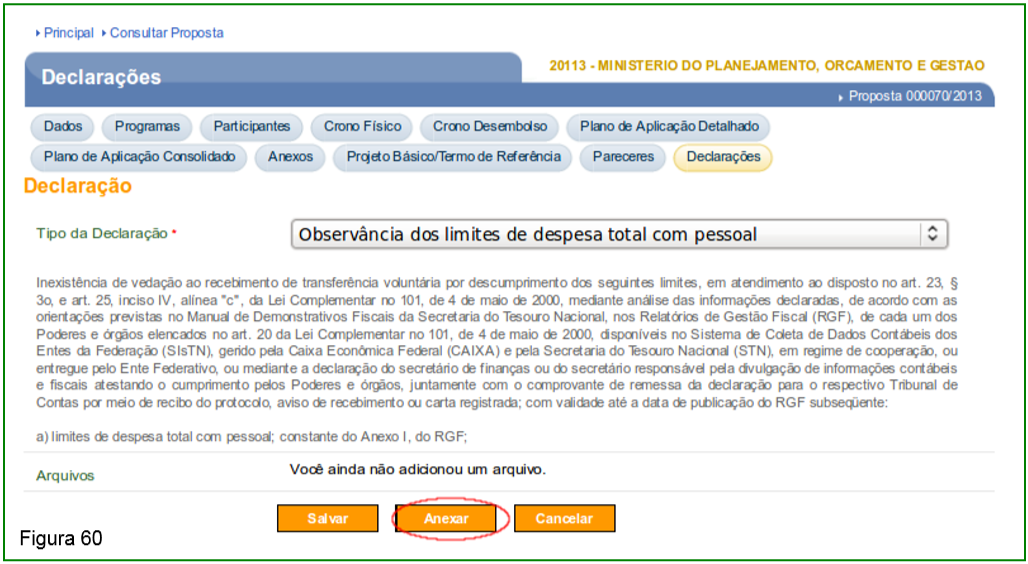
When selecting the type of declaration, the explanatory text related to it will be displayed on the screen and the user can click on the “Attach” button to include the files, as shown in Figure 60.